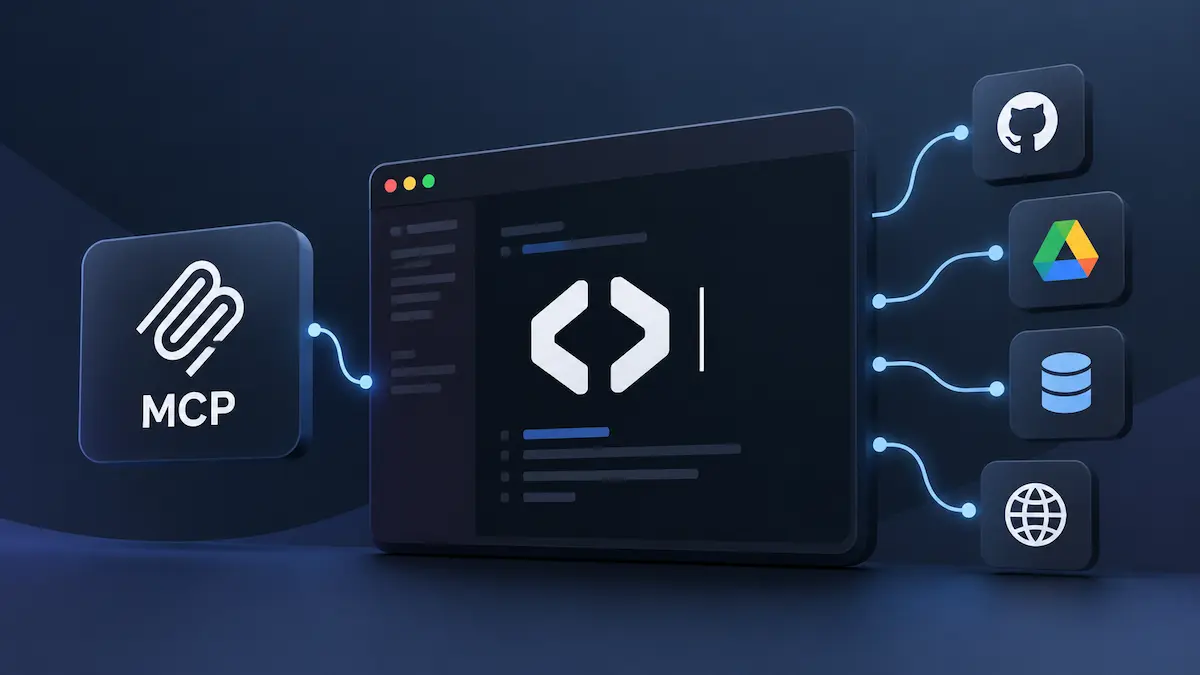
How to Use MCP in OpenCode: Complete Configuration and Setup Guide
Master Model Context Protocol in OpenCode. Learn how to configure local and remote MCP servers in opencode.json, manage API keys, run tools, and troubleshoot errors.
How to Use MCP in OpenCode: Complete Configuration and Setup Guide
The Model Context Protocol (MCP) has become the universal open standard for connecting AI coding assistants to external tools, databases, and enterprise services. Instead of building brittle, bespoke API integrations for every development utility, MCP provides a standardized client-server protocol that lets language models query live systems safely.
OpenCode—the open-source AI terminal agent maintained by Anomaly—features first-class support for MCP. Through its native configuration system and CLI commands, you can equip OpenCode with custom tools ranging from local SQLite and PostgreSQL databases to remote web scrapers and GitHub management utilities.
This guide provides a comprehensive, practical walkthrough on how to use MCP in OpenCode. You will learn the underlying architecture, where configuration files live, how to connect local and remote servers step by step, how to safely pass environment variables, how to trigger tools during chat sessions, and how to resolve common connection errors.
1. What Is MCP? (Conceptual and Technical Overview)
At its simplest, think of the Model Context Protocol (MCP) as the USB-C port for artificial intelligence.
Before MCP, if you wanted an AI coding assistant to query your database, search your internal documentation, and create a GitHub issue, each tool needed a custom plugin or vendor-specific wrapper. With MCP, developers write a single lightweight server, and any MCP-compliant client (like OpenCode, Claude Desktop, or Cline) can instantly discover and execute its tools.
The Technical Architecture
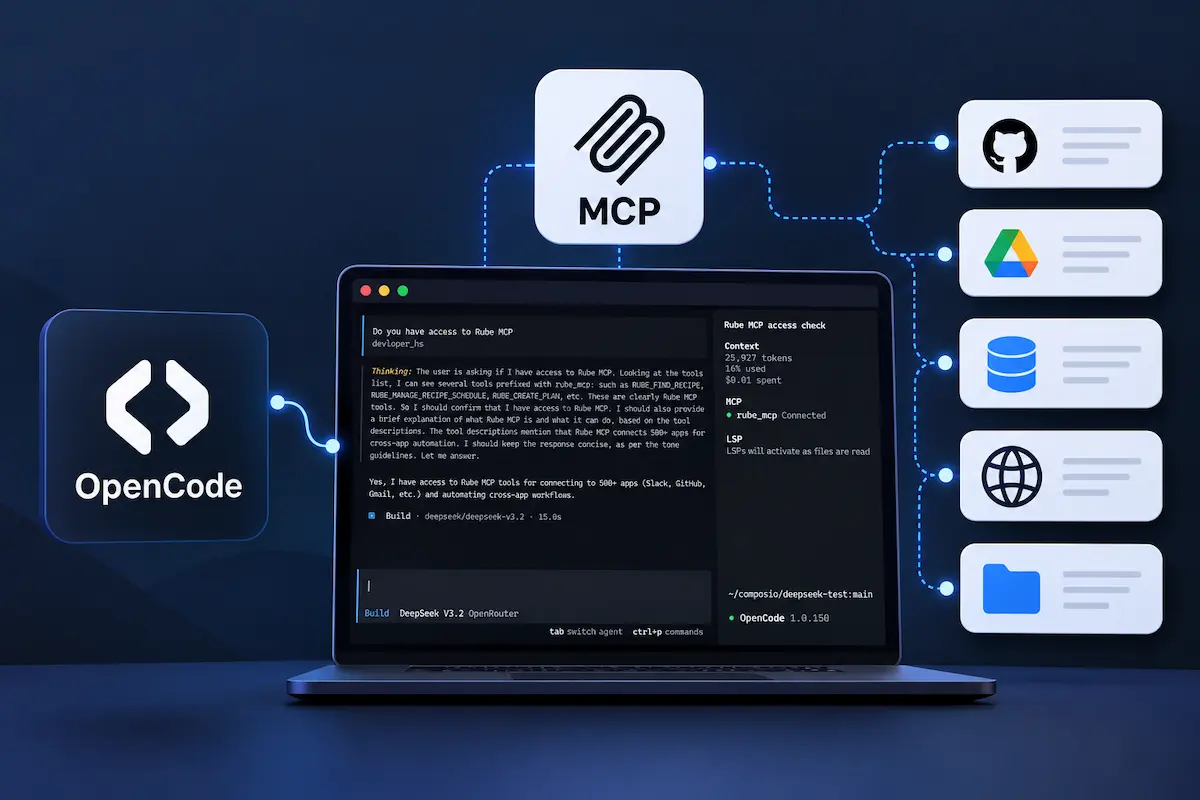
Under the hood, OpenCode acts as an MCP Host and Client. When you start a session, OpenCode establishes connections with the servers you have registered, asks them for their available capabilities (tools, prompts, and resources), and injects those definitions into the system prompt of the underlying LLM.
flowchart TD
  A["AI Model (Claude / GPT / DeepSeek)"]
  B["OpenCode Runtime (MCP Client / Host)"]
  A <-->|"Function Calling / Tool Selection"| B
  B -->|"Stdio Transport"| C["Local MCP Server<br>(e.g., SQLite, Filesystem)"]
  B -->|"HTTP / SSE"| D["Remote MCP Server<br>(e.g., Jira, Web Docs)"]
  C --> E["Local Disk / DB"]
  D --> F["Cloud SaaS / APIs"]
- AI Model: The reasoning engine (such as Claude 3.5 Sonnet, GPT-4o, or a local Qwen 2.5 Coder) decides when a problem requires an external tool based on descriptions exposed by the MCP server.
- OpenCode (Client/Host): Dispatches the tool call, enforces security permissions, captures the returned payload, and injects the output back into the conversation context.
- MCP Server: A standalone program (running locally as a child process via
stdioor remotely over HTTP) that translates generic protocol messages into concrete operations like SQL queries or API requests.
2. What Can MCP Do in OpenCode?
Connecting MCP servers transforms OpenCode from a text-based code editor into an autonomous problem solver. Common real-world capabilities include:
- Live Database Inspection: Query staging or local databases (SQLite, PostgreSQL, MySQL) to inspect schemas, verify table relationships, and write migrations without exporting CSV dumps.
- Documentation Retrieval: Use servers like
fetchorcontext7to read live API documentation from the web, preventing outdated hallucinations about newly released libraries. - GitHub & Issue Tracking: Read PR comments, search closed issues, and triage bugs without leaving your active terminal session.
- Custom Internal Tooling: Wrap proprietary internal scripts (deployment triggers, Kafka consumers, container orchestrators) as private MCP servers that OpenCode can invoke on command.
3. Video Tutorial: Understanding MCP Architecture
To visualize how the client-server handshake, tool discovery, and JSON-RPC messaging work in practice, watch this foundational breakdown:
Architecture and workflow of the Model Context Protocol (MCP) connecting clients with external server tools.
4. Prerequisites & Requirements
Before configuring MCP in OpenCode, ensure your environment meets the following requirements:
- OpenCode Installed: Ensure you have OpenCode installed via the official script or package manager:
# Official install script (macOS/Linux) curl -fsSL https://opencode.ai/install | bash # Or via npm globally npm install -g opencode-ai - Node.js & npx: Most community MCP servers are distributed as npm packages. You will need Node.js (v18 or higher) and
npxavailable in your systemPATH. - Python & uv (Optional): Required only if you plan to run Python-based MCP servers.
5. Checking Your OpenCode Version
OpenCode’s MCP implementation is actively maintained. Ensure you are running a recent version by checking your installed build:
opencode --versionIf your build is outdated, update OpenCode using the same package manager you used during initial installation (e.g., npm update -g opencode-ai or rerunning the official install script).
6. Where OpenCode Stores Its Configuration
OpenCode manages configuration using JSON (or JSON with comments, jsonc). You can define MCP servers at two distinct levels:
- Project Configuration (
<project-root>/opencode.json)- Overrides global settings for this repo
- Global Configuration (
~/.config/opencode/opencode.json)- Applies across all workspaces on your machine
Global Configuration
- Linux / macOS:
~/.config/opencode/opencode.json - Windows:
%USERPROFILE%\.config\opencode\opencode.json
Use the global configuration for general-purpose developer utilities that you want available across every project, such as web fetching tools, system monitors, or documentation readers.
Project-Level Configuration
- Location:
opencode.jsonlocated directly in the root directory of your repository.
Use project-level configuration for repository-specific tools, such as your project’s local SQLite database, custom Docker sandbox utilities, or company-specific API integrations.
Project-level configurations always take precedence over global configurations. If a server with the same name exists in both files, the project-specific definition is used.
7. How to Add Your First MCP Server to OpenCode
To understand the setup process, we will install the official SQLite MCP Server (@modelcontextprotocol/server-sqlite). This server allows OpenCode to inspect tables, examine schemas, and execute read queries against a local database file.
Step 1: Create a Dummy Database for Testing
In your project directory, create a quick SQLite database with sample data:
sqlite3 dev.db "CREATE TABLE users (id INTEGER PRIMARY KEY, name TEXT, email TEXT);"
sqlite3 dev.db "INSERT INTO users (name, email) VALUES ('Alice', 'alice@example.com'), ('Bob', 'bob@example.com');"
Step 2: Add the Server via the OpenCode CLI
The fastest way to register an MCP server is through the opencode mcp add command. Run the following in your project terminal:
opencode mcp add sqlite -- npx -y @modelcontextprotocol/server-sqlite ./dev.dbIf you want the server installed globally across all projects, add the --global flag:
opencode mcp add sqlite --global -- npx -y @modelcontextprotocol/server-sqlite /path/to/global.dbStep 3: Verify the Generated Configuration
Open your project’s opencode.json file. You will see that OpenCode has written the configuration block under the mcp object:
{
  "$schema": "https://opencode.ai/config.json",
  "mcp": {
    "sqlite": {
      "type": "local",
      "command": [
        "npx",
        "-y",
        "@modelcontextprotocol/server-sqlite",
        "./dev.db"
      ],
      "enabled": true
    }
  }
}
8. Understanding the MCP Configuration Line by Line
Understanding each field in opencode.json ensures you can configure custom servers without relying on blind copy-pasting:
"$schema": Points to the official OpenCode JSON schema validator (https://opencode.ai/config.json), providing autocompletion and syntax error highlighting in your editor."mcp": The top-level dictionary containing all configured MCP servers."sqlite": The unique identifier for this server. OpenCode prefixes the tools provided by this server with this name (e.g.,sqlite_read_query)."type": Defines the transport mechanism. Set to"local"for command-line executables, or"remote"for HTTP/SSE endpoints."command": An array of strings representing the executable and arguments used to spawn the server process viastdio."enabled": A boolean flag (trueorfalse). Setting this tofalseallows you to temporarily disable a server without deleting its configuration block.
9. Local vs. Remote MCP Servers in OpenCode
OpenCode supports both local process-based servers and network-accessible remote servers.
Local MCP Servers (type: "local")
Local servers run on your workstation as child processes spawned by OpenCode. Communication occurs over standard input and output (stdio).
- Advantages: High execution speed, direct access to the local filesystem, and full data privacy.
- Disadvantages: Requires local runtimes (Node.js, Python, Docker) installed on your machine.
Remote MCP Servers (type: "remote")
Remote servers run on external infrastructure and communicate with OpenCode over HTTP or Server-Sent Events (SSE). To learn more about modern remote server architectures and horizontal scaling, read our guide on Stateless MCP Architecture.
You register a remote server using the CLI:
opencode mcp add docs --url https://mcp.context7.com/mcpThis generates the following structure in opencode.json:
{
  "mcp": {
    "docs": {
      "type": "remote",
      "url": "https://mcp.context7.com/mcp",
      "enabled": true
    }
  }
}
If the remote server requires OAuth authentication, OpenCode provides built-in token management:
# Authenticate against a remote server
opencode mcp auth docs

# Clear stored credentials when needed
opencode mcp logout docs
OAuth tokens are securely stored in your local user data directory (~/.local/share/opencode/mcp-auth.json).
10. Managing Environment Variables and API Keys Securely
Many MCP servers (such as GitHub, Slack, or AWS connectors) require authentication tokens. You must never hardcode plaintext secrets into opencode.json, especially in projects committed to version control.
OpenCode provides an environment property with variable substitution:
{
  "$schema": "https://opencode.ai/config.json",
  "mcp": {
    "github": {
      "type": "local",
      "command": [
        "npx",
        "-y",
        "@modelcontextprotocol/server-github"
      ],
      "environment": {
        "GITHUB_PERSONAL_ACCESS_TOKEN": "{env:GITHUB_TOKEN}"
      },
      "enabled": true
    }
  }
}
Best Practices for Secrets
- Use
{env:VARIABLE_NAME}Syntax: OpenCode dynamically reads the value from your shell environment at startup. - Export in Your Shell Profile: Add secrets to your
~/.bashrc,~/.zshrc, or local.envfile (ensure.envis listed in your.gitignore). - Avoid Raw Strings: Any raw token placed in
opencode.jsonwill be visible to collaborators if committed to Git.
11. Complete Multi-Server Configuration Example
In real development environments, you will often need multiple servers running simultaneously. Here is a realistic opencode.json configuration combining a database inspector, a web documentation scraper, and a GitHub connector:
{
  "$schema": "https://opencode.ai/config.json",
  "mcp": {
    "db-sqlite": {
      "type": "local",
      "command": ["npx", "-y", "@modelcontextprotocol/server-sqlite", "./data/app.db"],
      "enabled": true
    },
    "web-fetch": {
      "type": "local",
      "command": ["npx", "-y", "@modelcontextprotocol/server-fetch"],
      "enabled": true
    },
    "github": {
      "type": "local",
      "command": ["npx", "-y", "@modelcontextprotocol/server-github"],
      "environment": {
        "GITHUB_PERSONAL_ACCESS_TOKEN": "{env:GITHUB_TOKEN}"
      },
      "enabled": true
    }
  },
  "permission": {
    "db-sqlite_*": "allow",
    "github_*": "ask"
  }
}
Notice the
"permission"block. You can set granular rules for MCP tools using wildcards (*). Setting"github_*": "ask"forces OpenCode to ask for your explicit confirmation before creating commits, commenting on issues, or deleting branches.
12. How to Check Which MCP Servers Are Connected
Once your configuration is saved, verify that OpenCode successfully discovers and connects to your servers.
Using the CLI
Run the opencode mcp list (or opencode mcp ls) command in your terminal:
opencode mcp listExample Output:
Configured MCP Servers:
  • sqlite     [local]   CONNECTED (3 tools available)
  • web-fetch  [local]   CONNECTED (1 tool available)
  • github     [local]   CONNECTED (14 tools available)
If a server fails to connect, the status will display DISCONNECTED or ERROR. You can debug connectivity issues using:
opencode mcp debug <server-name>13. How to Use MCP Tools Inside OpenCode
Once connected, using MCP tools inside OpenCode requires no special syntax. You simply speak to the agent naturally in the TUI, and the model automatically selects the appropriate tool when needed.
Realistic Prompts to Try
- Querying a Database:
Inspect the users table in our sqlite database and summarize the most recent signups.
- What happens: OpenCode recognizes that
sqlite_read_querycan fulfill this request, executesSELECT * FROM users ORDER BY id DESC LIMIT 5;, and renders a clean Markdown table in your terminal.
- What happens: OpenCode recognizes that
- Reading Web Documentation:
Use the fetch tool to read the documentation at https://raw.githubusercontent.com/example/lib/main/README.md and tell me how to configure rate limits.
- What happens: OpenCode invokes
web-fetch_fetch, parses the remote Markdown, and answers using the fresh documentation without hallucinations.
- What happens: OpenCode invokes
- Triage a GitHub Issue:
Check issue #42 on our repository and outline the bug described by the user.
- What happens: OpenCode invokes the GitHub MCP tool
get_issue, retrieves the issue body, and summarizes the reproduction steps.
- What happens: OpenCode invokes the GitHub MCP tool
How to Recognize When MCP Is in Use
In OpenCode’s terminal interface, active tool invocations are explicitly marked. You will see a status badge indicating the tool name (e.g., Calling tool: sqlite_read_query) along with the arguments passed. If the tool is set to "ask", OpenCode will pause and display a confirmation prompt before running the command.
14. Curated Selection of High-Value MCP Servers
Rather than installing dozens of experimental plugins, focus on these battle-tested servers that provide immediate utility for coding:
| Server Name | Package / Identifier | Primary Use Case | Setup Complexity |
|---|---|---|---|
| SQLite | @modelcontextprotocol/server-sqlite |
Local application database inspection and queries | Low |
| Fetch | @modelcontextprotocol/server-fetch |
Converting web pages and raw URLs into clean Markdown | Low |
| GitHub | @modelcontextprotocol/server-github |
Managing issues, pull requests, and repository files | Medium (Requires Token) |
| PostgreSQL | @modelcontextprotocol/server-postgres |
Inspecting production-grade relational schemas | Medium (Requires Connection URI) |
| Filesystem | @modelcontextprotocol/server-filesystem |
Secure sandboxed directory access outside workspace | Low |
For broader comparisons of tools that support agentic workflows and local models, explore our comprehensive guide to the Best Open Source AI Coding Tools.
15. Security Considerations and Tool Hardening
Granting an AI agent access to external tools introduces real operational risks. An MCP server with unrestricted permissions can potentially alter database records, send API requests, or delete files if prompted maliciously or confused by indirect prompt injection.
To protect your system:
- Audit Untrusted Repositories: Never clone a random public repository and run
opencodewithout checking if itsopencode.jsoncontains suspicious local commands. Because OpenCode executes thecommandspecified inopencode.json, a malicious configuration could execute arbitrary shell scripts. - Enforce Permission Gates: Always configure sensitive tools (especially write and delete operations) with
"permission": { "...": "ask" }. - Limit Context Exposure: Every tool added injects tokens into your system prompt. Enabling 15 servers simultaneously can consume 10,000+ tokens of context before you even type your prompt. Enable only what you need.
- Deep Dive on Hardening: For a detailed breakdown of prompt injection vectors, tool manipulation, and containment patterns, read our report on Agent Tool Hardening.
16. Troubleshooting Common OpenCode MCP Errors
When working with MCP servers, you may encounter connectivity or execution issues. Use this troubleshooting matrix to resolve them quickly:
1. Server Shows “DISCONNECTED” in opencode mcp list
- Possible Cause: The command failed to execute, or the Node/Python binary is missing from your system PATH.
- Solution: Test running the command manually in your terminal (e.g., run
npx -y @modelcontextprotocol/server-sqlite ./dev.db). Ensure thatnpxornodeexecutes without errors outside of OpenCode.
2. “command not found: npx”
- Possible Cause: OpenCode was started in a shell environment that lacks your standard Node version manager (such as
nvm,fnm, orasdf). - Solution: Specify the absolute path to your binary in
opencode.json(e.g.,"/usr/local/bin/npx"or"~/.nvm/versions/node/v20.x/bin/npx"), or ensure your version manager is loaded in non-interactive shells.
3. Missing Environment Variable Error
- Possible Cause: You used
{env:MY_TOKEN}, but the variable was not exported in your current terminal session. - Solution: Run
echo $MY_TOKENto confirm it is populated. Export it explicitly (export MY_TOKEN="secret") before launching OpenCode.
4. JSON Syntax Errors in opencode.json
- Possible Cause: Trailing commas or unescaped backslashes in path strings.
- Solution: Rename your file to
opencode.jsoncto allow comments, or validate your JSON with an online linter. Ensure all file paths use forward slashes (/), even on Windows.
17. How to Remove or Disable an MCP Server
- To Temporarily Disable a Server: Open
opencode.jsonand set"enabled": falseon the target server. OpenCode will immediately skip loading its tools without losing your configuration. - To Completely Remove a Server: Delete the corresponding key from the
mcpobject inopencode.jsonand save the file. - To Revoke OAuth Credentials: Run
opencode mcp logout <server-name>to delete saved session tokens from disk.
18. Best Practices Checklist
- Store project tools in
./opencode.json: Keep repository-specific databases and scripts tied directly to the codebase. - Store general utilities in
~/.config/opencode/opencode.json: Keep documentation search and scratchpad tools globally accessible. - Never commit plaintext API keys: Always use the
{env:KEY}syntax and maintain a.env.examplefile. - Audit context limits: Check
opencode mcp listand disable servers you aren’t using to keep context windows lean and fast. - Enforce
"ask"on destructive actions: Never give write, delete, or push commands unconditional automatic execution.
19. Frequently Asked Questions (FAQ)
Do I need to pay for an API subscription to use MCP in OpenCode?
No. The Model Context Protocol is completely open-source and free to use. However, running an MCP server may involve costs if that server connects to a paid commercial API (like GitHub Enterprise or paid web search APIs). If you use local tools (like SQLite) alongside local LLMs running in Ollama, your entire MCP setup is 100% free with zero token fees.
Can I use MCP servers originally built for Claude Desktop in OpenCode?
Yes. MCP is a standardized protocol. Any server designed for Claude Desktop, Cline, or Cursor that complies with the standard Model Context Protocol specification will run seamlessly inside OpenCode via opencode.json.
Why are my MCP tools not appearing during chat in OpenCode?
First, verify that the server is active by running opencode mcp list. If the server is listed as connected, check that your underlying language model supports function calling (tool calling). While frontier models like Claude 3.5 Sonnet and GPT-4o handle tool calls natively, some smaller local models may struggle to output the required tool call syntax reliably.
Can an MCP server modify files outside my current workspace?
Only if the server is specifically granted filesystem access and configured with permissions outside your repository directory. For example, @modelcontextprotocol/server-filesystem requires you to explicitly pass allowed directories as launch arguments. A local SQLite server will only access the specific database file provided in its arguments.
How many MCP servers can I run simultaneously in OpenCode?
Technically, there is no hard software limit. However, each connected MCP server injects its tool definitions and schemas into the LLM’s system prompt. Running more than 4 or 5 servers at once can consume significant context tokens and slightly degrade the model’s instruction-following precision. It is best practice to enable only the servers relevant to your current task.
Conclusion
The Model Context Protocol transforms OpenCode from a standalone code generator into an integrated engineering companion. By mastering opencode.json, managing your environment variables safely, and configuring high-value tools like databases and documentation fetchers, you unlock the full power of autonomous agentic development directly inside your favorite terminal.

Yan ZC
Software Developer & Tech Reviewer
Software developer and tech reviewer at ToolReview. I test, analyze, and document AI tools and software workflows. My mission is to help you find the perfect tech stack with honest reviews and rigorous benchmarks.